
Get started
Create your first Gemma chat in Pūnaha 1.0.0
Verify and upload a Gemma 4 E4B GGUF file, enable the model, build and test a chat workflow, then try a real conversation. Includes a 1.0.0 video and screenshots.
Your progress
Follow this journey
Progress is saved only in this browser.
Use this guide with Pūnaha 1.0.0
The written instructions describe Product source 33f8eaabbf4579d9568dd676965a254d0e73cd28 used for the published 1.0.0 packages, reviewed on 14 November 2026. Use the matching installation guide and the runtime supplied with that package. The published Linux packages include CPU inference and embedding, without GPU workers.
Recorded 1.0.0 media. The video and screenshots on this page show real frontend interactions in an installed, registered Windows 1.0.0 installation on 19 November 2026. The written steps describe the published 1.0.0 edition. The recording used an already downloaded, verified GGUF file and performed a real upload. Repeat the model load and response test on your own hardware.
Check model execution and worker recovery as well as memory state. A loaded model is not proof of a successful generation or embedding request.
What you will make
You will download a language model, make it available in Punaha, and build a workflow that answers your messages.
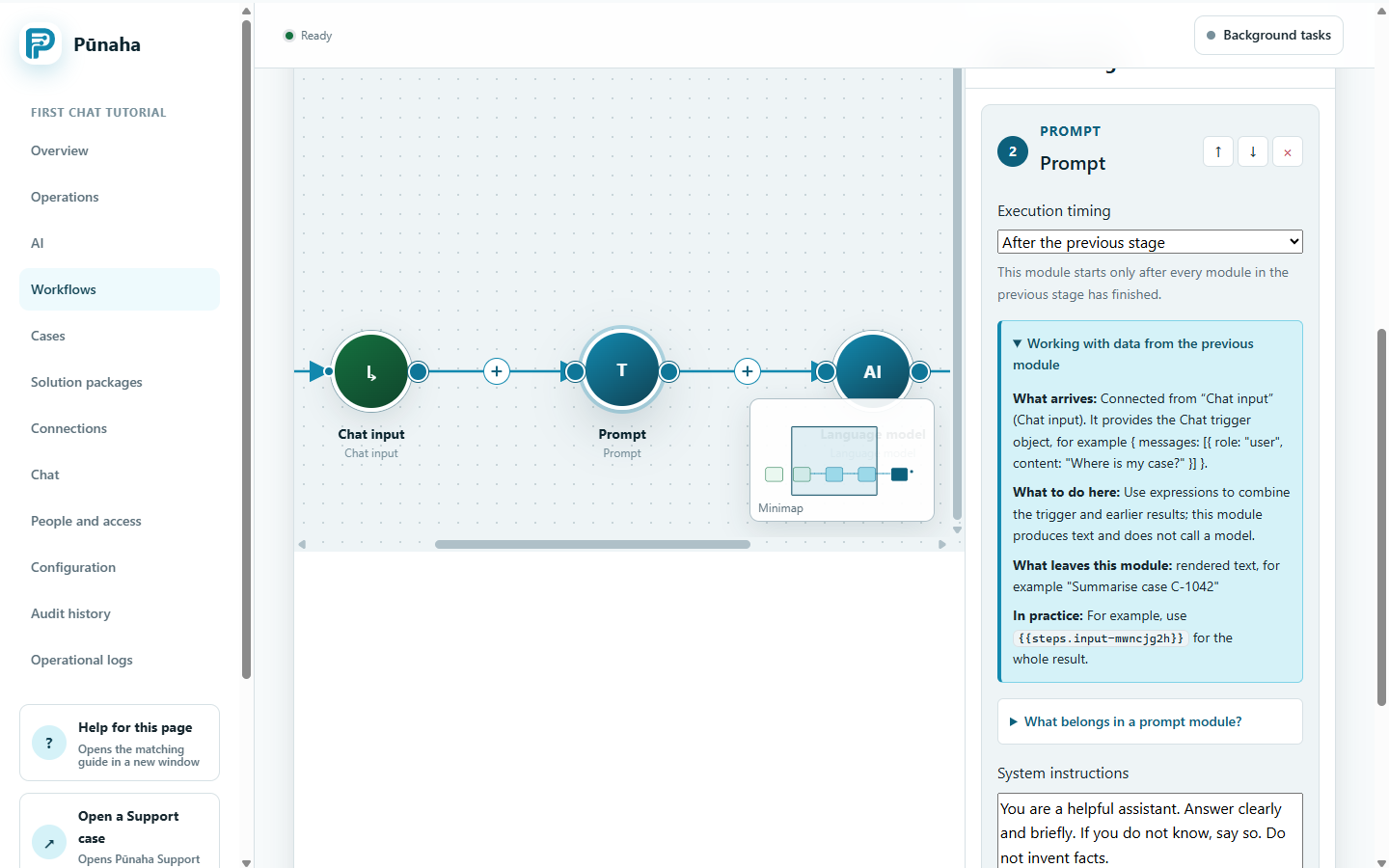
Chat input → Prompt → Language model → Chat output
This example uses Gemma 4 E4B Instruct for text chat. It does not need a knowledge database or an embedding model.
Watch the full 1.0.0 walkthrough, download its video, or read the narrated transcript. The video needs an internet connection; the written guide and screenshots are included in the offline documentation.
Before you start
- Install the matching 1.0.0 package, finish first setup, and open a test tenant. Use harmless practice messages.
- Use an account allowed to manage models, create and publish workflows, and open Chat.
- Check that the AI and Workflow services are ready. For this first example, use one server with the required services.
- Allow about 5 GB for the model download and another copy on the Punaha server. Leave additional storage and memory for loading, context, and other services.
- Use the runtime supplied with your 1.0.0 package. A downloaded model still needs a successful load and response test on your hardware.
Start with the 1.0.0 platform and package guide. Choose your installer from the published 1.0.0 GitHub release and use its bundled runtime. The historical RC1 repair is not a 1.0.0 installation step.
Register the installation within its 720 powered-on-hour allowance. Renew or export before the cutoff, when ordinary work and exports stop while data is retained.
1. Download the correct Gemma file
A GGUF file contains model weights in the format used by Punaha's local runtime. Upload the model file, not a Python package or a whole repository.
- Read Google's Gemma 4 E4B Instruct model card and the linked model licence.
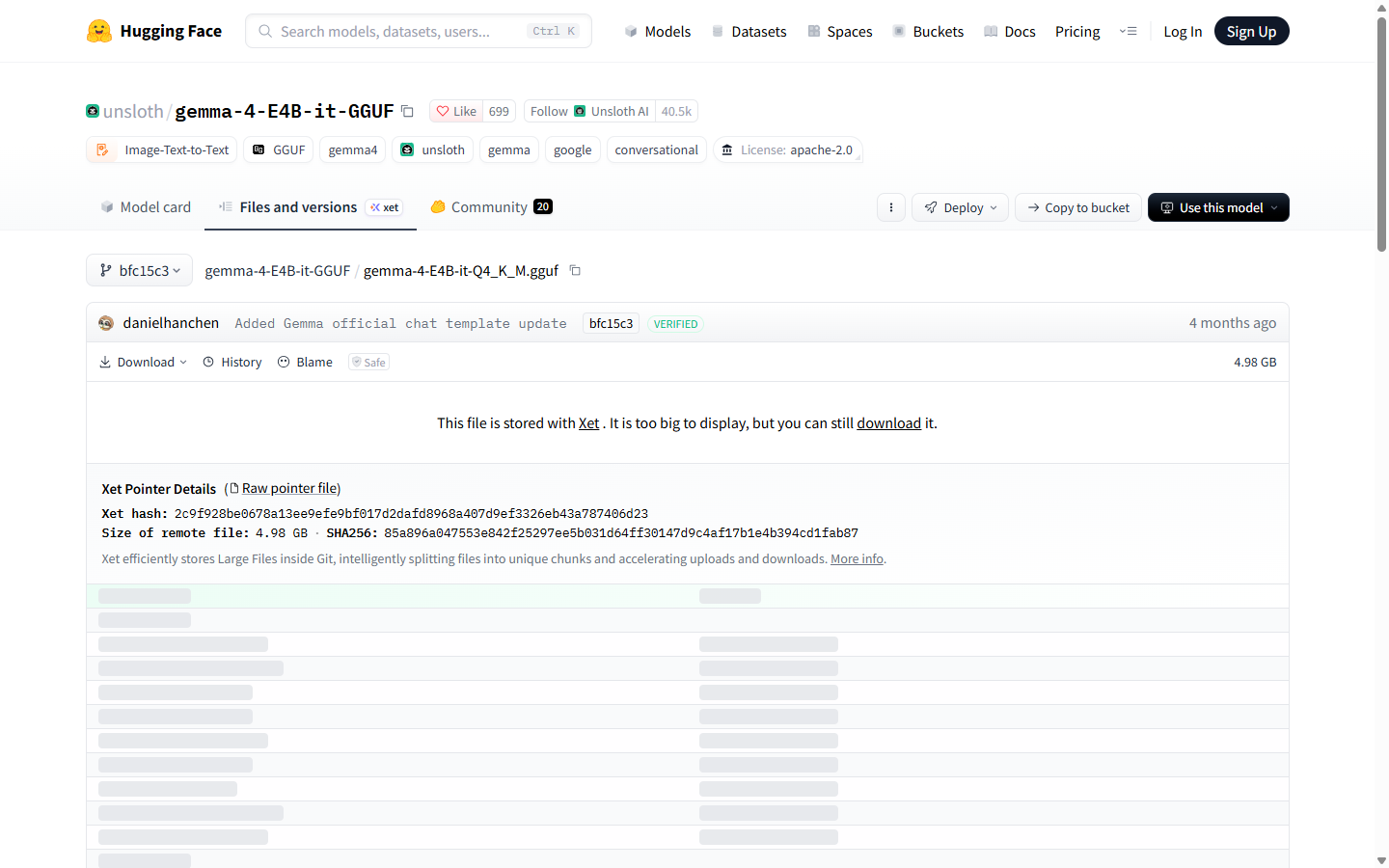
- Open the GGUF files published by Unsloth on Hugging Face. This example links to a fixed revision reviewed on 7 October 2026.
- Choose
gemma-4-E4B-it-Q4_K_M.gguf, then choose Download → Download file. The file is about 4.98 GB. - Wait for the download to finish. Keep the
.ggufextension and check that the browser has not saved an incomplete download. - Do not choose a file beginning
mmprojormtp. Those are companion files, not the language model for this text chat example. Files ending.safetensorsare also not this upload format.
Q4_K_M identifies this model's quantization. Its disk size is not the memory needed to run it. The 4.98 GB download is about 4.64 GiB. Some screens display this as 4.6 GB.
Already have the complete file? Verify it and continue to upload. The recording reuses the existing verified file in E:\GGUF\Gemma instead of downloading another 4.98 GB. Because the original filename was already installed on this demonstration server, it uploads an alternate-named local copy with the same bytes. For your first installation, use the original downloaded filename.
Optional: verify the downloaded file
For the exact linked revision, the file has 4,977,171,584 bytes and this SHA256 value:
85a896a047553e842f25297ee5b031d64ff30147d9c4af17b1e4b394cd1fab87On Windows, open PowerShell in the download folder and run:
Get-FileHash .\gemma-4-E4B-it-Q4_K_M.gguf -Algorithm SHA256On Linux, run:
sha256sum gemma-4-E4B-it-Q4_K_M.ggufCompare the complete result. A different model revision can have a different hash. Do not continue with a partial or mismatched file.
2. Upload the model to Punaha
- Open the target Punaha server's frontend and select your test tenant.
- Open AI → Models. The page is titled Model runtime and connections.
- Check the selected server and runtime status. If it is missing, follow your package's installation or repair instructions before continuing.
- Choose Add GGUF model and select
gemma-4-E4B-it-Q4_K_M.gguffrom your computer. - Keep the page open while the upload finishes. Confirm the completed model appears in the local model list.
The model file is copied to the Punaha server. It runs through the local runtime. You do not need a Hugging Face API key in the local model Connection.
If the file is already listed, reuse it. Uploading the same filename again is rejected.
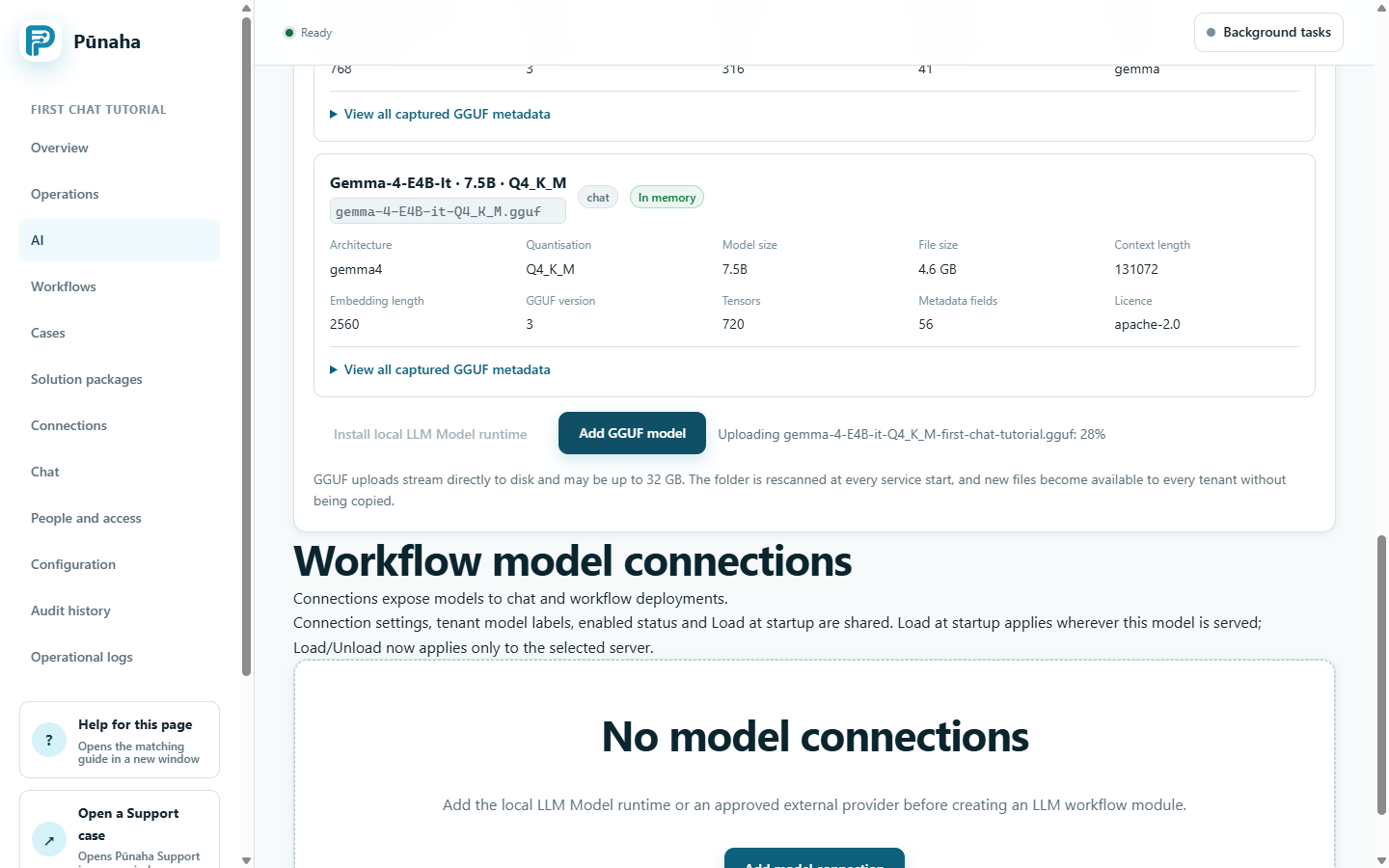
If the upload control is missing, open the target server's own frontend. Selecting a remote server does not enable uploading to it from another node.
3. Enable the model for workflows
- Look for the local LLM Model Connection and the uploaded model. Local discovery may have created them already.
- If there is no local Connection, choose Create connection. Give it a clear name and select LLM Model as its Provider. This is the embedded llama.cpp option.
- On that Connection, choose Discover models. Select the uploaded Gemma file and choose Enable selected models if it is not already enabled.
- Check that the Connection and model are enabled and that the model supports Chat / response generation.
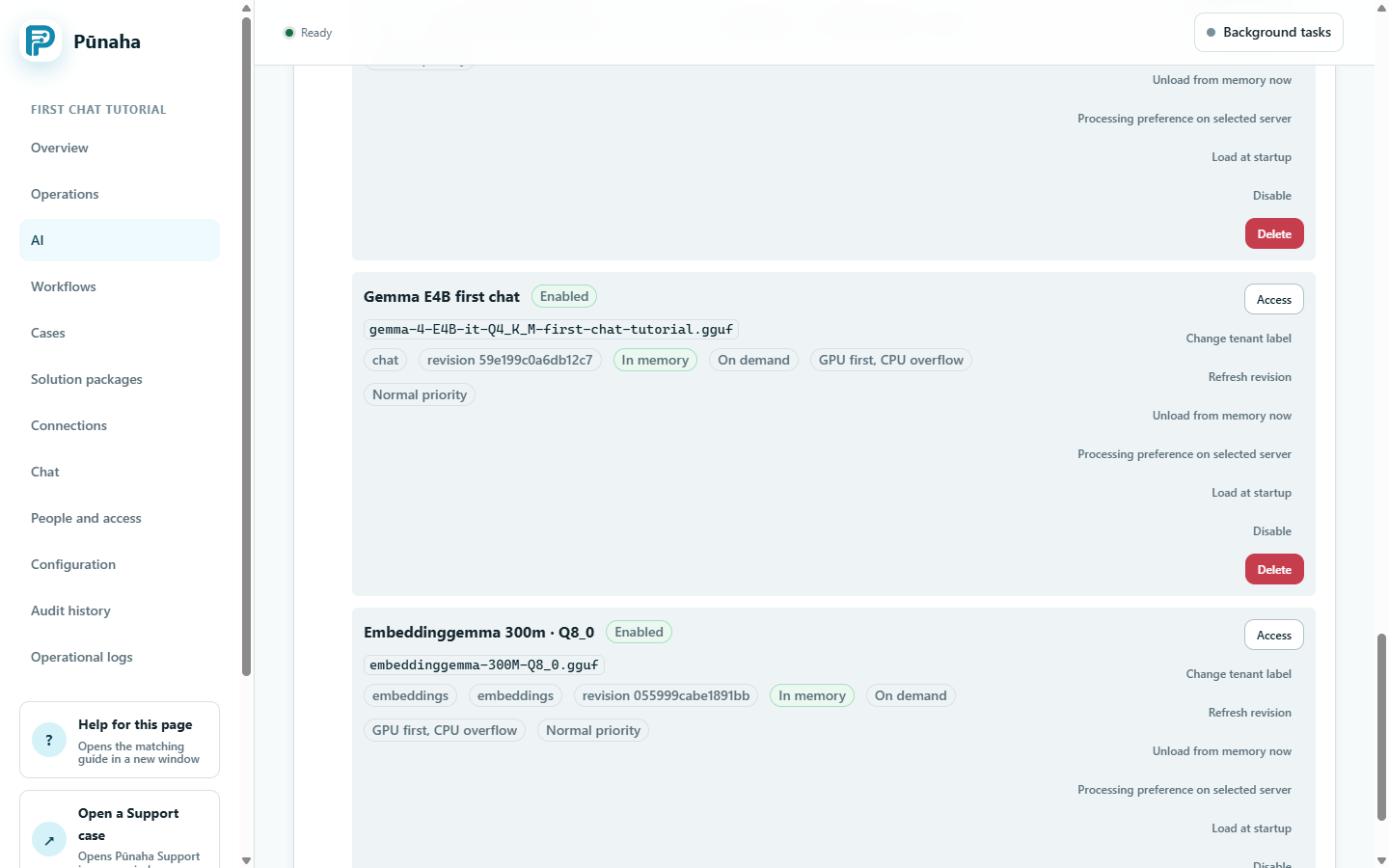
- Use Change tenant label to name the deployment Gemma E4B first chat. Keep its underlying model ID unchanged.
- Choose Load into memory now and check the result. Initial loading can take time. A memory or compatibility error must be resolved before continuing.
A deployment is the model entry that a workflow can select. Uploading a file and enabling its deployment are separate checks. Load at startup is optional.
If the model already says In memory, continue without loading it again.
4. Create the chat workflow
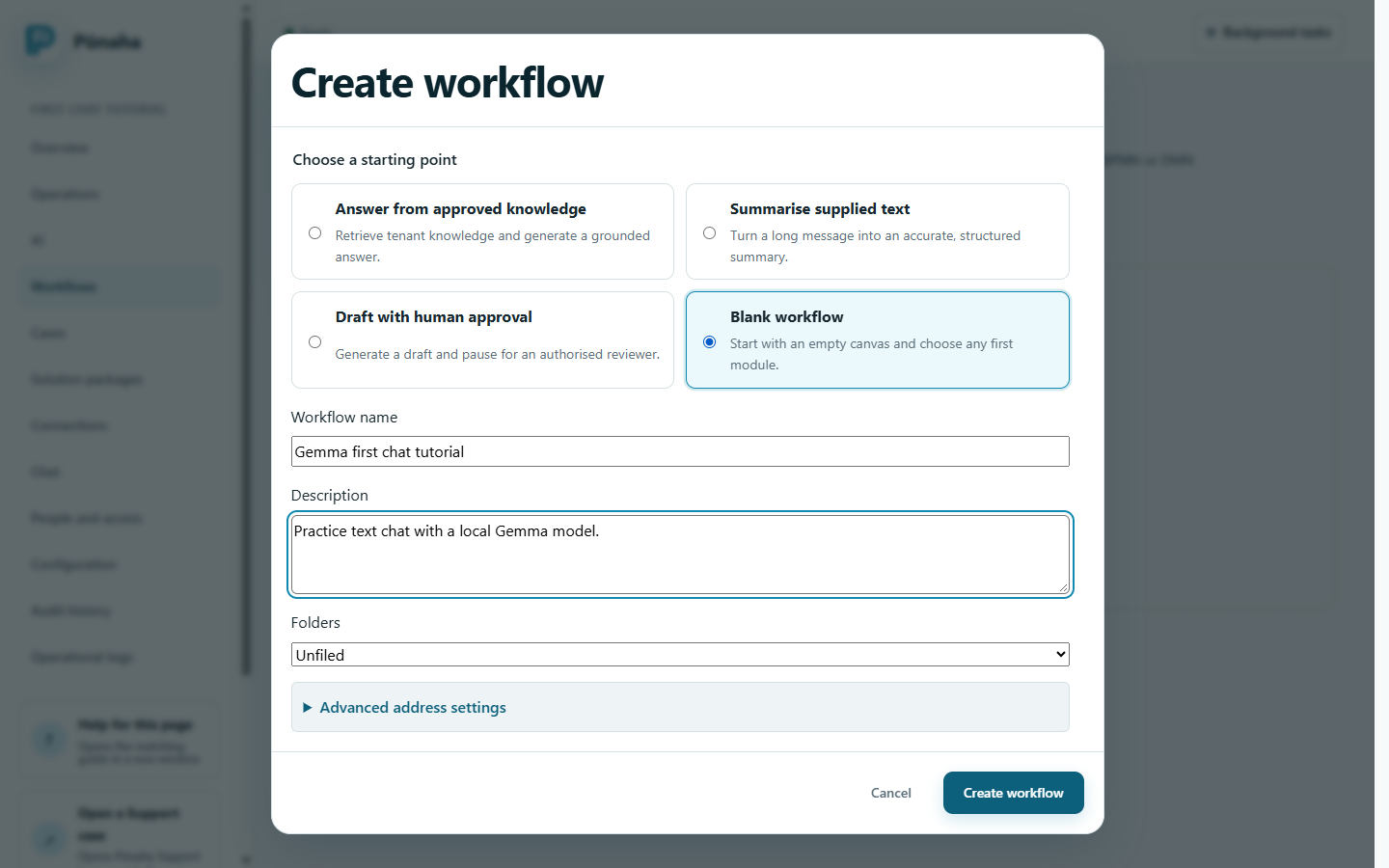
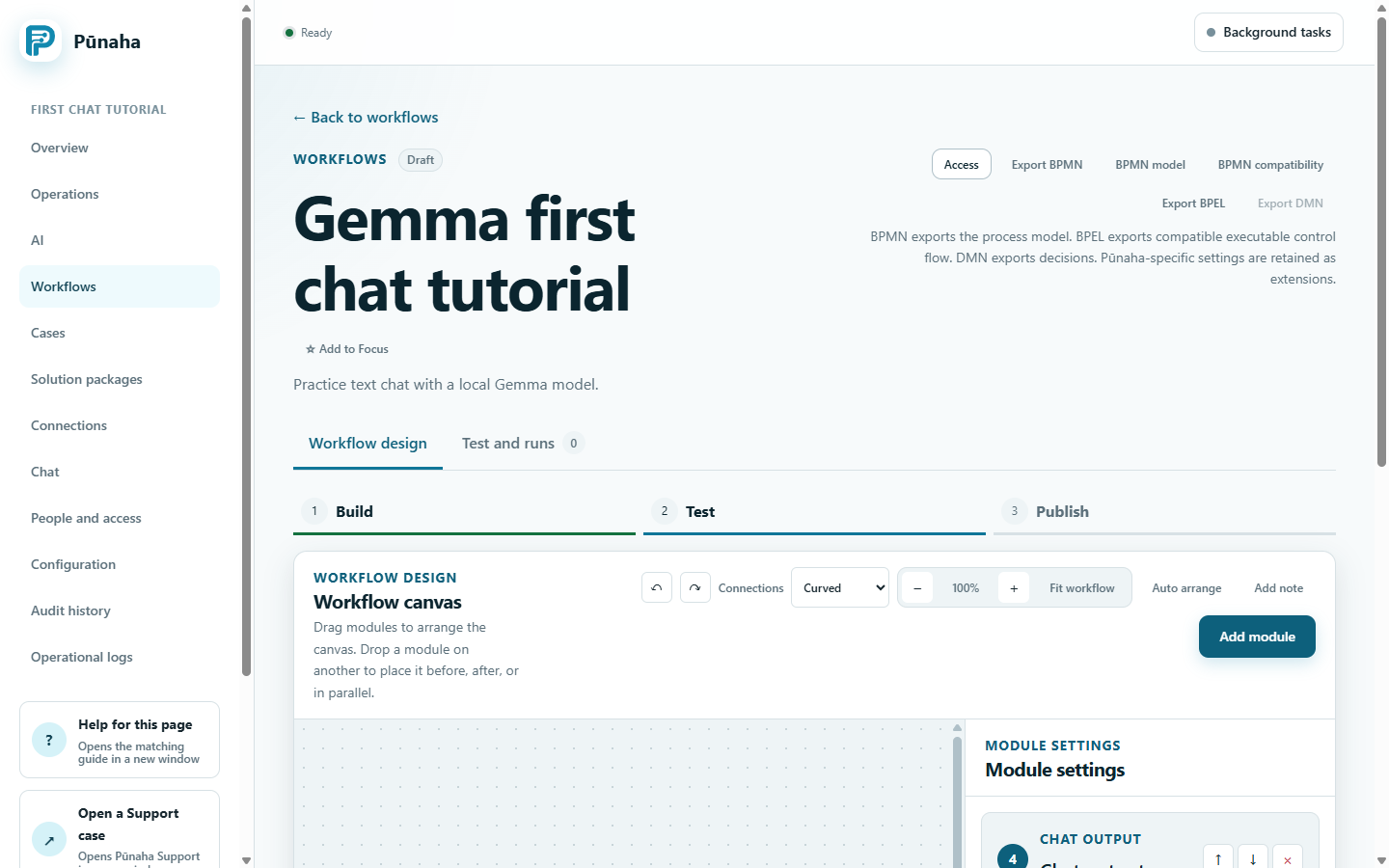
- Open Workflows, then choose Create workflow.
- Select Blank workflow. Name it Gemma first chat tutorial and describe it as Practice text chat with a local Gemma model.
- Create the draft, then open it. The address is generated from the name. Use a different name if that address is already taken.
- Use Add module to add Chat input, Prompt, Language model, and Chat output.
- Check the connections. They must form one path in that order, with no disconnected module or extra branch. Keep After the previous stage selected and leave the required Protection gateway enabled.
- Open the Prompt module and enter the settings below.
System instructions
You are a helpful assistant. Answer clearly and briefly.
If you do not know, say so. Do not invent facts.
Paste this complete User prompt template. It includes the instructions in the text passed to the next module:
You are a helpful assistant. Answer clearly and briefly.
If you do not know, say so. Do not invent facts.

Conversation so far:
{{input.messages}}

Reply to the latest user message:
{{inputText}}
{{input.messages}} supplies the conversation messages. {{inputText}} supplies the latest user message. Keep both pairs of braces.
Using only {{input}} supplies the latest message. It does not pass earlier replies as context. Use the complete template above for this short conversation example.
5. Choose the model and test the draft
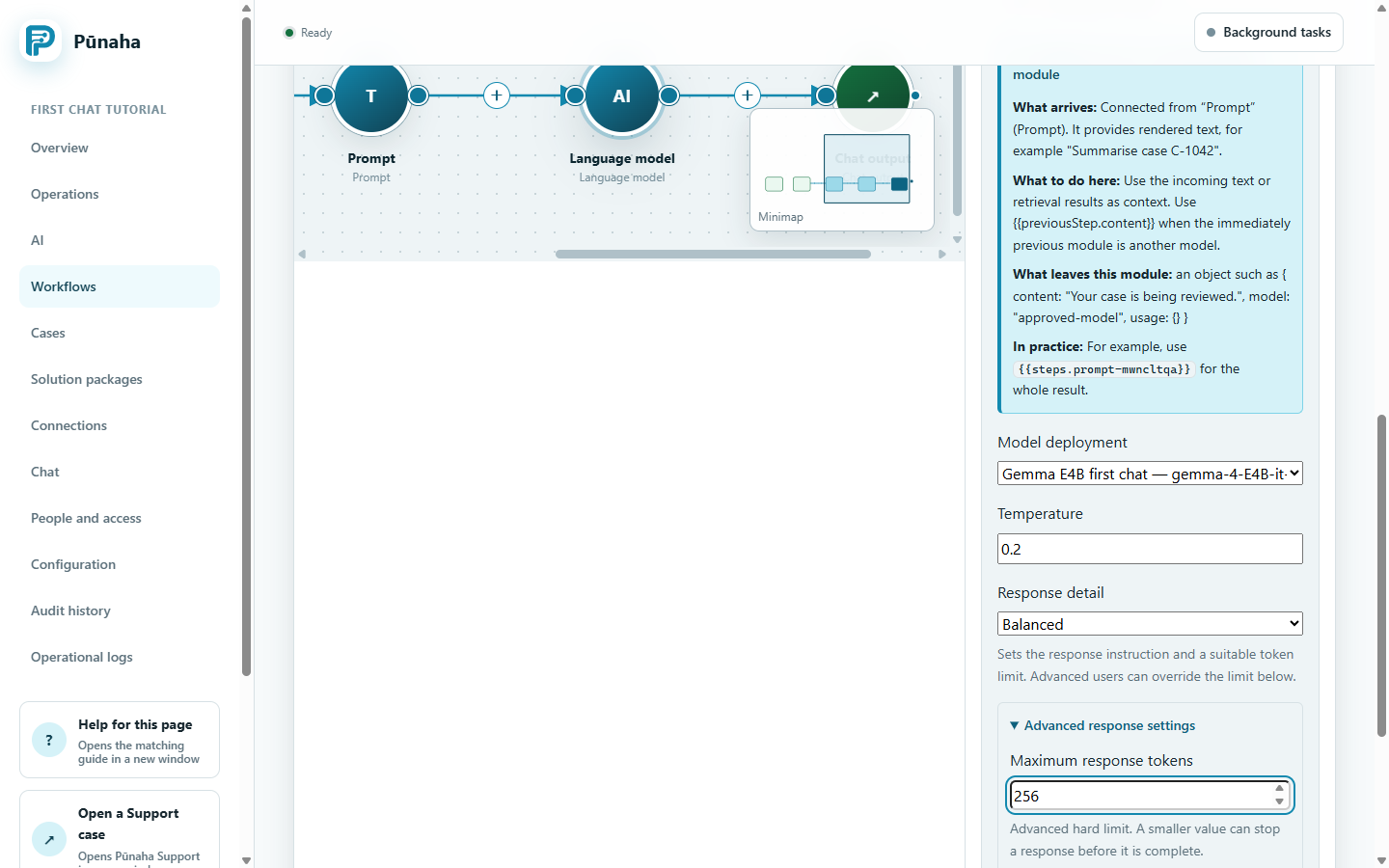
- Open the Language model module.
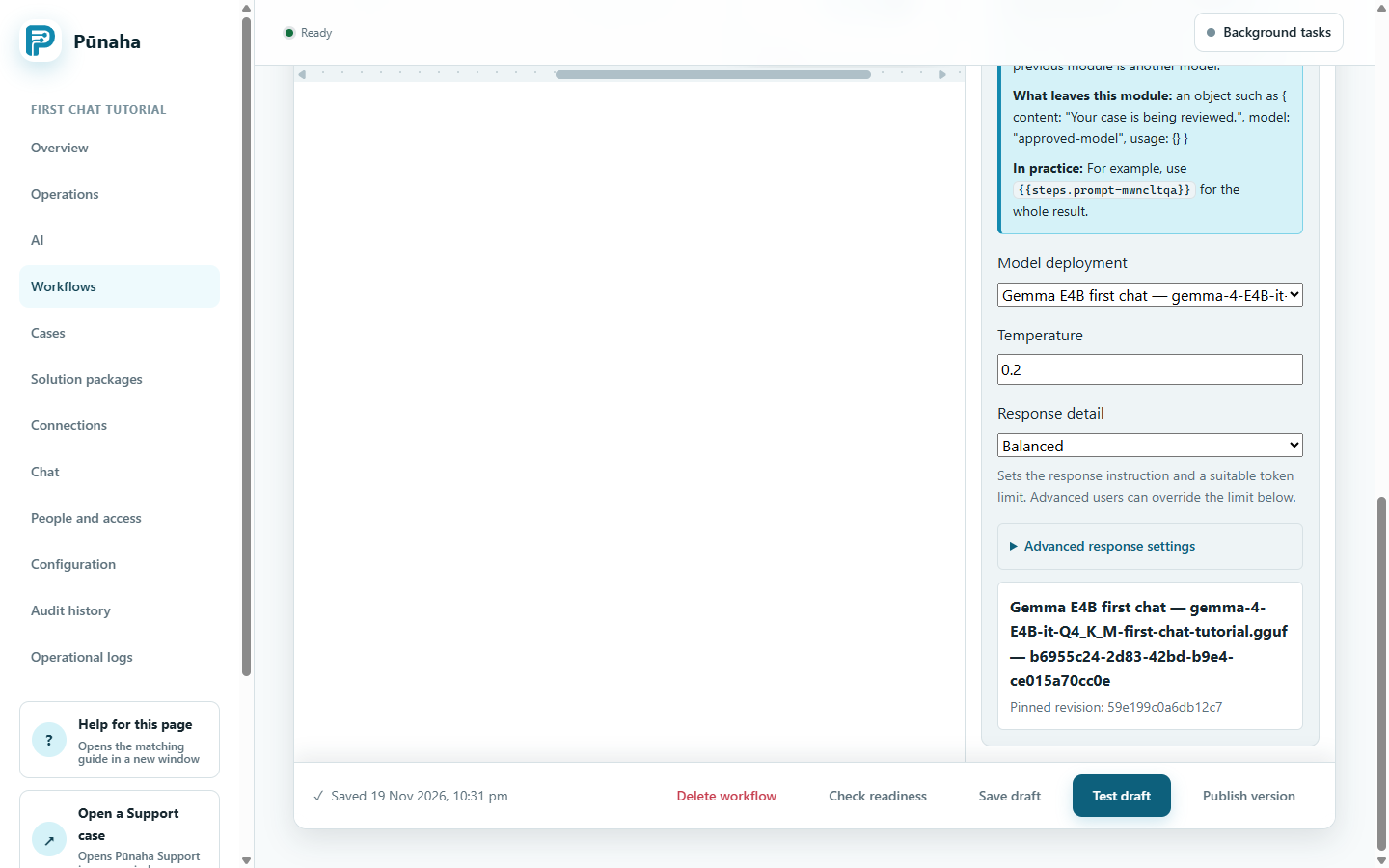
- Set Model deployment to Gemma E4B first chat. Confirm that it refers to the uploaded Gemma file.
- For a short first test, use the example settings below. They are a starting point, not a model benchmark.
- Choose Save draft, then Check readiness. Resolve each reported error.
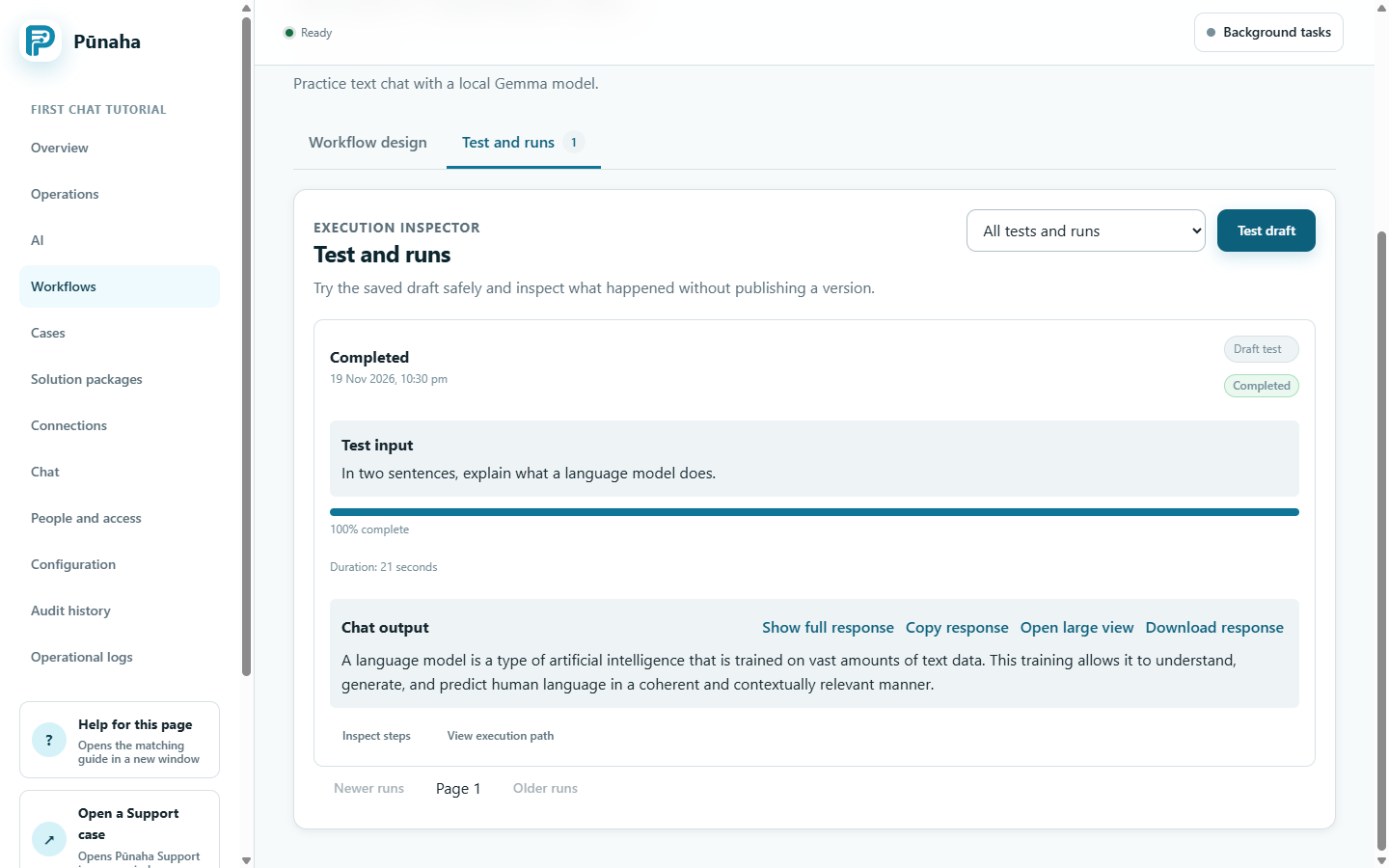
- Choose Test draft. Send In two sentences, explain what a language model does.
- Check the run result and the Language model step. You should receive a relevant answer without a model or runtime error.
| Setting | Example value |
|---|---|
| Model deployment | Gemma E4B first chat |
| Temperature | 0.2 |
| Response detail | Balanced |
| Maximum response tokens | 256, under Advanced response settings |
Draft testing runs a saved draft snapshot. It does not publish the workflow. A readiness check alone does not prove that the model can generate an answer.
Keep this practice conversation short. Longer conversations need separate context and capacity testing.
6. Publish and start chatting
- After the draft test succeeds, return to Workflow design. Choose Publish version and confirm publication.
- Open Chat in the same tenant and choose Gemma first chat tutorial.
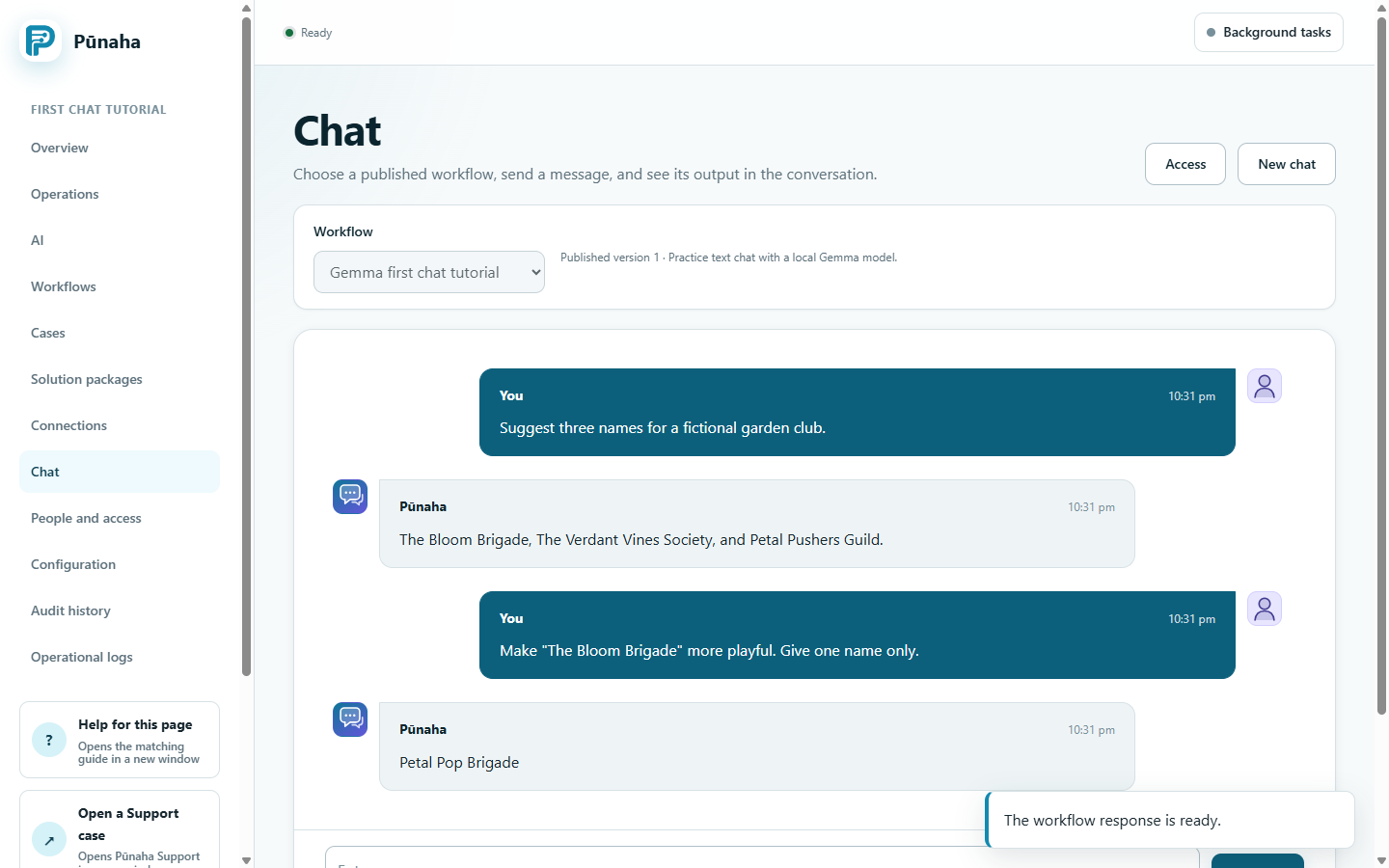
- Start a new chat and send Suggest three names for a fictional garden club.
- Read the answer. Choose one returned name and ask for a change, quoting that name explicitly.
- Check the answer and saved run. Responses vary, so check relevance and successful completion rather than exact wording.
For example: Make "The Bloom Brigade" more playful. Give one name only. Replace the quoted name with one from your own answer.
The recorded 1.0.0 Chat returned The Bloom Brigade, The Verdant Vines Society, and Petal Pushers Guild. A follow-up quoting The Bloom Brigade returned Petal Pop Brigade. Responses vary; quote the name you want changed.
Chat lists published workflows. Saving or testing a draft is not enough. After changing the workflow, publish it again and start a new chat to use that version.
If something does not work
| What you see | What to check |
|---|---|
| Upload rejected or interrupted | Check the GGUF file and free server storage. The model upload accepts one file up to 32 GB. Follow the upload error before retrying. |
| Gemma is missing from Model deployment | Confirm the same tenant, enabled Connection, enabled chat deployment, and your access to it. |
| Model cannot load | Check the complete file, memory, and the package runtime's support for this Gemma architecture. Keep the error for your administrator. |
| Follow up misses earlier details | Use the complete conversation template in step 4. Publish the changed draft and start a new chat. Quote the detail you want changed. |
| Raw model data or an empty answer | Do not count this as success. Check the model step and prompt context. Chat can display raw result data when the model returns no text. |
| Slow answer or timeout | Start with a short message and modest response limit. Check CPU or GPU use and other jobs. Ask an administrator to review capacity and timeout settings. |
| An answer stops early | Inspect the run result. A response token limit can truncate an answer. Adjust it carefully after the first short test succeeds. |
| The workflow is missing from Chat | Publish it, use the same tenant, and check Chat access and workflow Run access. |
| Normal use is restricted | Check the term and powered-on-hour allowance. Ask the System Owner to complete registration or renewal and confirm activation. |
Check your result
You should have one complete Gemma file, an enabled local chat deployment, a successful draft test, and a published workflow that answers in Chat.
1.0.0 recording and observed result
The full video and screenshots were captured on 19 November 2026 in an installed, registered Windows Pūnaha 1.0.0 executable with SHA-256 8a798ac91079489af2be8a53266a59de11bc1d48ef3aa62b42bb72cab61b267c. The local model upload completed; the new deployment was enabled and loaded; draft readiness passed; the saved draft generated an answer; workflow version 1 was published inside the local app; and Chat answered a first message and a quoted follow-up. These are observed checks on this installation, not a guarantee for every platform or package.
The video starts on the exact Hugging Face file page and shows the upload, setup, test and Chat. It joins two real frontend captures after a recording interruption. Sign-in and unrelated tenant screens were excluded. There is no simulated Product screen or model answer. Read the narrated transcript.
Earlier RC1 guide
Still using 0.1 RC1? Read the preserved RC1 first-chat guide and video. Its October 2026 recording used a repaired Windows RC1 installation. Follow the guide that matches your installed version.
Next steps
Continue with Chat with your knowledge using Gemma to add document search and a refusal for missing information.
Read Run local AI models, Check and publish workflows, and Use Chat. For more knowledge options, read Prepare a model and knowledge database.
Sources
Model information: Google model card, Unsloth GGUF files, and Google's llama.cpp guidance. Follow the linked model terms separately from the Punaha licence.
Was this page helpful?
Your answer helps us improve the documentation.
Do not include personal information, customer information, passwords, or keys.