
Operate
Use logs and audit records
Search logs for a problem and use audit records to see important changes.
Know the difference
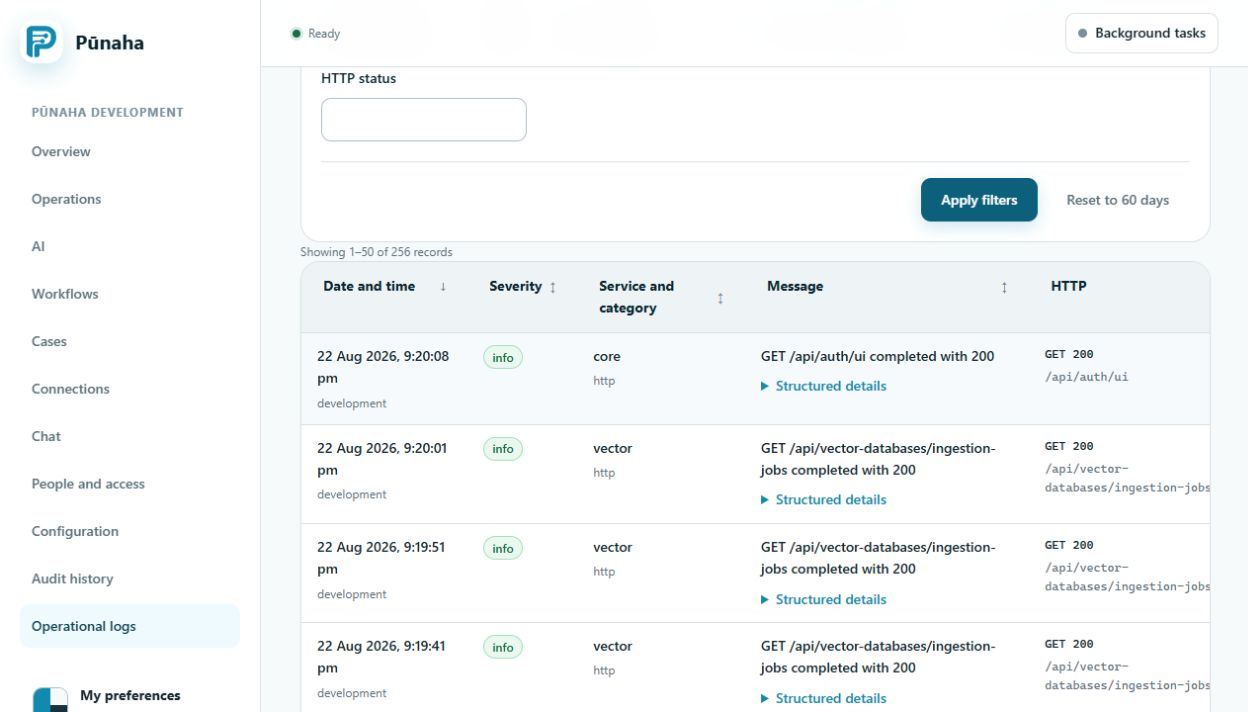
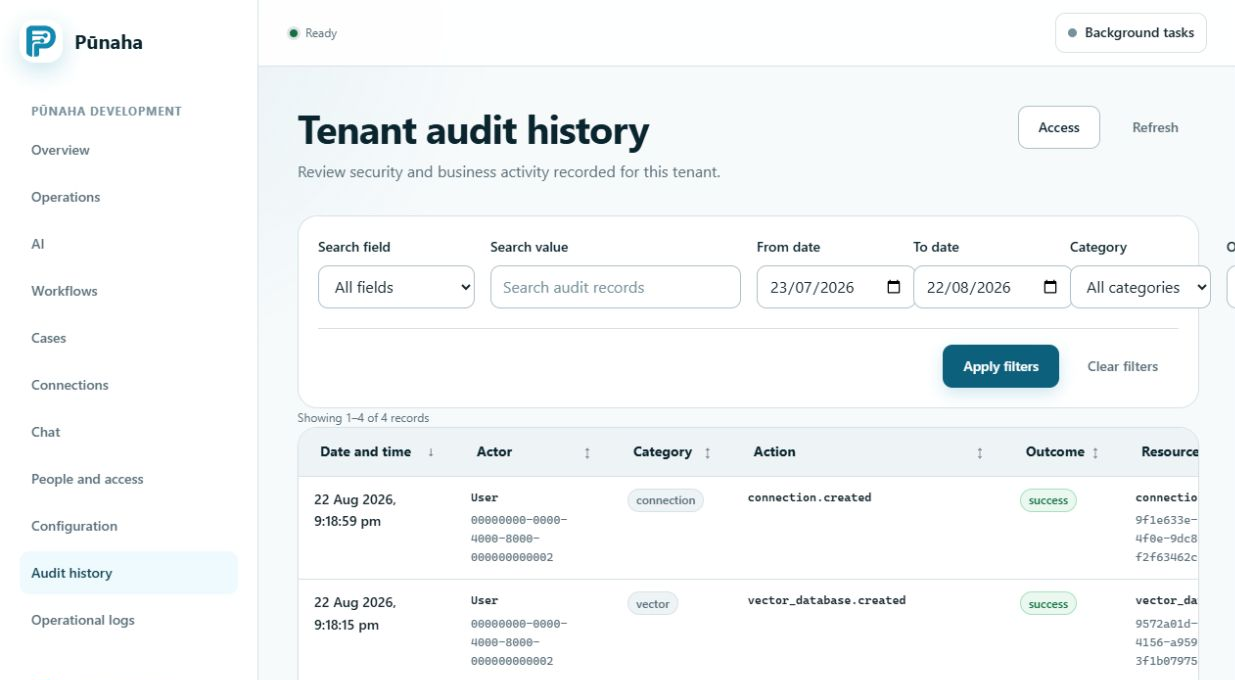
Operational logs help you find service and request problems. Audit records show important security, access, and administration events.
Search the logs
- Open Operational logs.
- Choose a short time range.
- Enter the tenant and request, run, case, or item ID.
- Read the events in time order.
Check the audit record
Use Audit history when you need to know who changed access, settings, or another important item.
Protect exported records
Logs and audit records may contain personal or security information. Follow your organisation's rules for access, storage, and sharing.
Do not add passwords or secret keys to a support file.
Keep the diagnostic reference
If the browser shows a client incident reference, keep it alongside the request, operation and run IDs. A client reference helps correlate a failure; it does not prove the server received or completed the action. Read current work state before retrying. Follow Prepare diagnostic information for Support when a reviewed bundle is needed.
Was this page helpful?
Your answer helps us improve the documentation.
Do not include personal information, customer information, passwords, or keys.