
Use Punaha
Use Chat
Start a chat that uses an approved workflow and approved resources.
Before you start
Chat runs a published workflow. You need access to Chat, that workflow, and the models, knowledge, or Connections it uses.
Start a chat
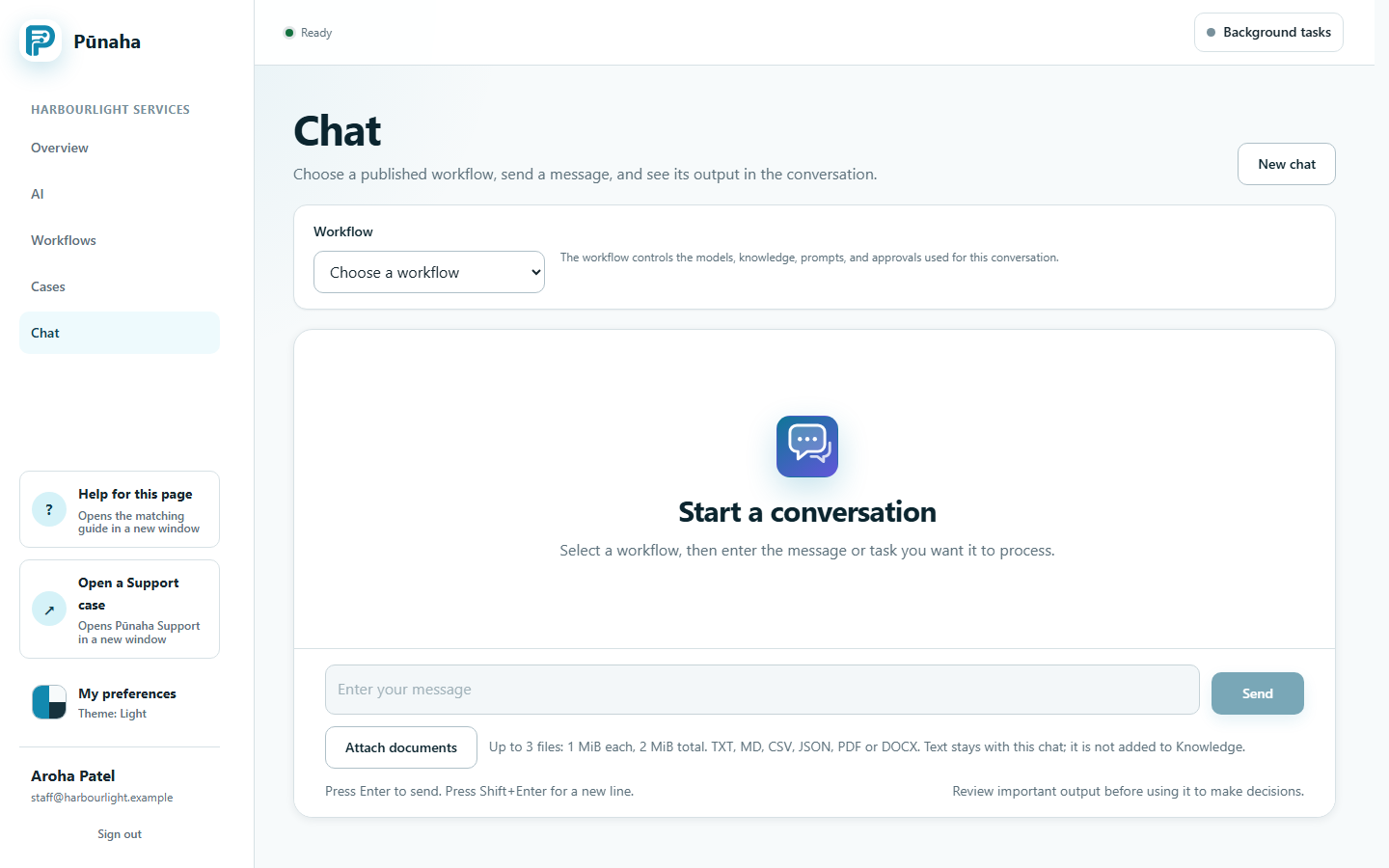
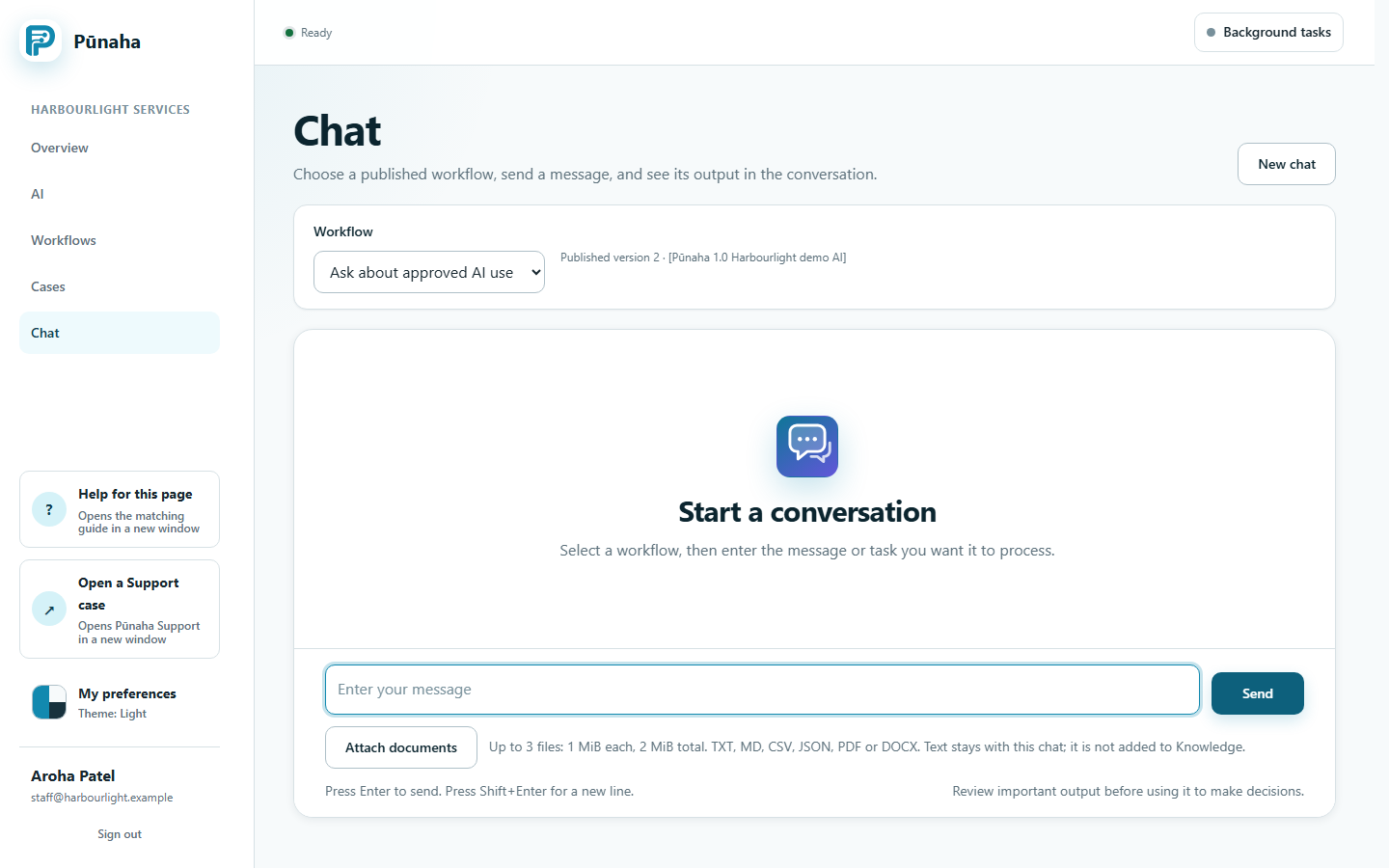
- Open Chat in the intended tenant.
- Choose a published workflow.
- Enter your question or instruction.
- Optionally attach supported documents and review the selected files.
- Send the message and follow the saved result or waiting state.
Attach documents
A message accepts up to three TXT, MD, CSV, JSON, PDF, or DOCX files. Each file can be up to 1 MiB. The combined originals can be up to 2 MiB.
PDFs need searchable text. Encrypted, empty, malformed, and unsupported files are rejected. Extracted text and the full message also have bounded limits.
Remove unwanted files before sending. A rejected submission keeps the draft available for correction. These limits are separate from Knowledge uploads.
Understand where the text goes
The selected workflow receives the extracted text as reference input. It may pass that text to its configured model or Connection. Attaching a file does not automatically add it to shared Knowledge.
The run retains extracted text and file metadata, not the original binary for download. Follow up messages can retain the earlier document context.
User facing Chat run access is limited to the creator within the tenant. This is not an encryption boundary against system administrators or a workflow configured to send content elsewhere.
Follow waits and approvals
Read the displayed wait type. Only an approval wait asks for a decision. Other waits can finish through background work. Follow the immutable instructions shown for the approval.
Cancel or reconnect
Cancel stops further work when available. It does not erase an accepted saved chat. If live updates stop, reopen the saved run and check its state before sending again.
Next step
Read Create and search knowledge for shared document indexing, or document formats and limits.
Keep the diagnostic reference
If the browser shows a client incident reference, keep it alongside the request, operation and run IDs. A client reference helps correlate a failure; it does not prove the server received or completed the action. Read current work state before retrying. Follow Prepare diagnostic information for Support when a reviewed bundle is needed.
Build a knowledge chat
For version 1.0.0, follow Build a Gemma knowledge chat for a practice document, workflow steps, answer checks and a recorded interaction.
Was this page helpful?
Your answer helps us improve the documentation.
Do not include personal information, customer information, passwords, or keys.