
Administer
Manage Connections
Add and test the connections used by workflows and cases.
Before you start
Confirm the system address, Connection type, sign in method, and network rules with the system owner.
Keep the password, token, or key in an approved secret store until you enter it in Pūnaha.
Open Connections
A Connection stores settings for email, an API, or a database. A workflow can use the Connection without storing its password.
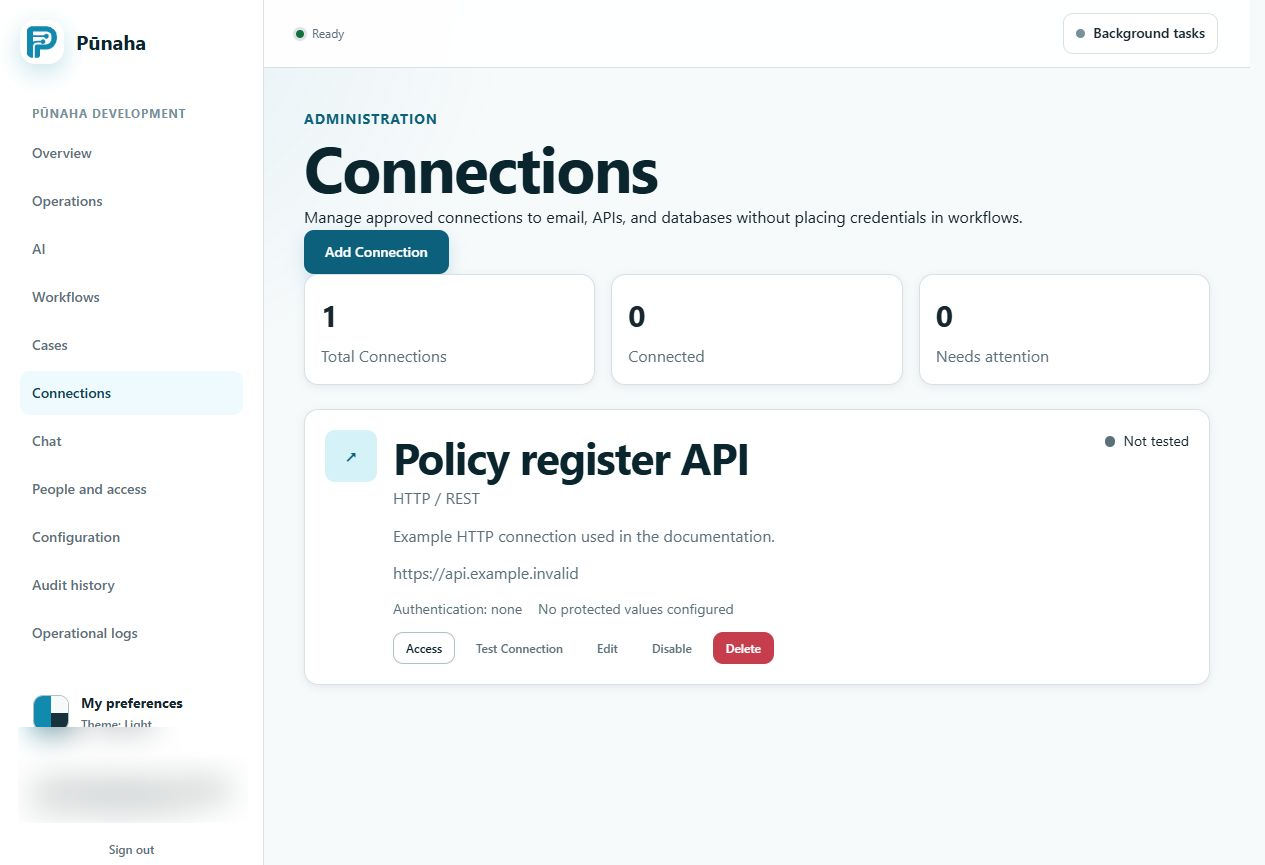
Add a Connection
- Choose Add Connection.
- Enter a clear name and purpose.
- Choose the type.
- Enter the server address.
- Choose the sign in method.
- Enter the login details.
- Check the secure connection and allowed host settings.
- Save the Connection.
Test the Connection
- Choose Test on the saved Connection.
- Wait for the result.
- Read the complete message.
- If the test succeeds, check the time and test message saved on the card.
- Give access only to the people and services that need it.
A successful test proves that the saved Connection worked at that time. It does not prove that every action is allowed.
Check the result in a solution
Use safe sample information in a draft workflow. Check the result before you publish the workflow.
Protect passwords and keys
Do not put passwords in a workflow, page address, screenshot, or normal log.
A successful test only proves that the Connection worked at that time. It does not prove that every action is allowed.
If the test fails
- Read the saved test message.
- Check the server address and port.
- Check the sign in method and secret.
- Check the secure connection setting.
- Check the allowed host and private network rules.
- Test again only after you change the likely cause.
Change a Connection
Check which published workflows use it. If a password is exposed, disable access and change the password at its source. Then update and test the Connection.
Next step
Use the Connection in a draft workflow journey. Keep it out of the published workflow until the test succeeds.
Was this page helpful?
Your answer helps us improve the documentation.
Do not include personal information, customer information, passwords, or keys.