
Build solutions
Build a case type and work with a case
Create a case type, publish it, open a case, and complete its work.
Your progress
Follow this journey
Progress is saved only in this browser.
Before you start
Describe the kind of work the case will manage. List the information, people, stages, tasks, requirements, and files it needs.
Confirm that the builder can manage case types. Confirm that the case worker can create or work with cases.
Create the case type
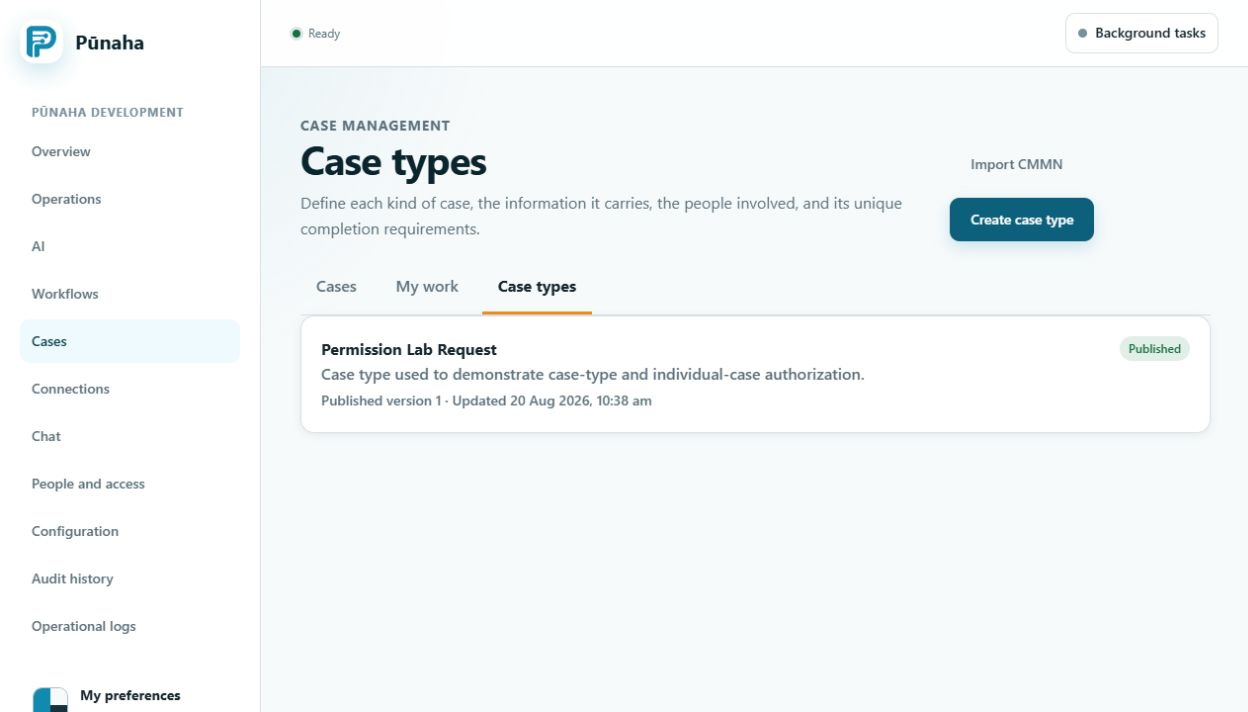
- Open Cases, then choose Case types.
- Choose Create case type.
- Enter a clear name, address, and description.
- Create the draft.
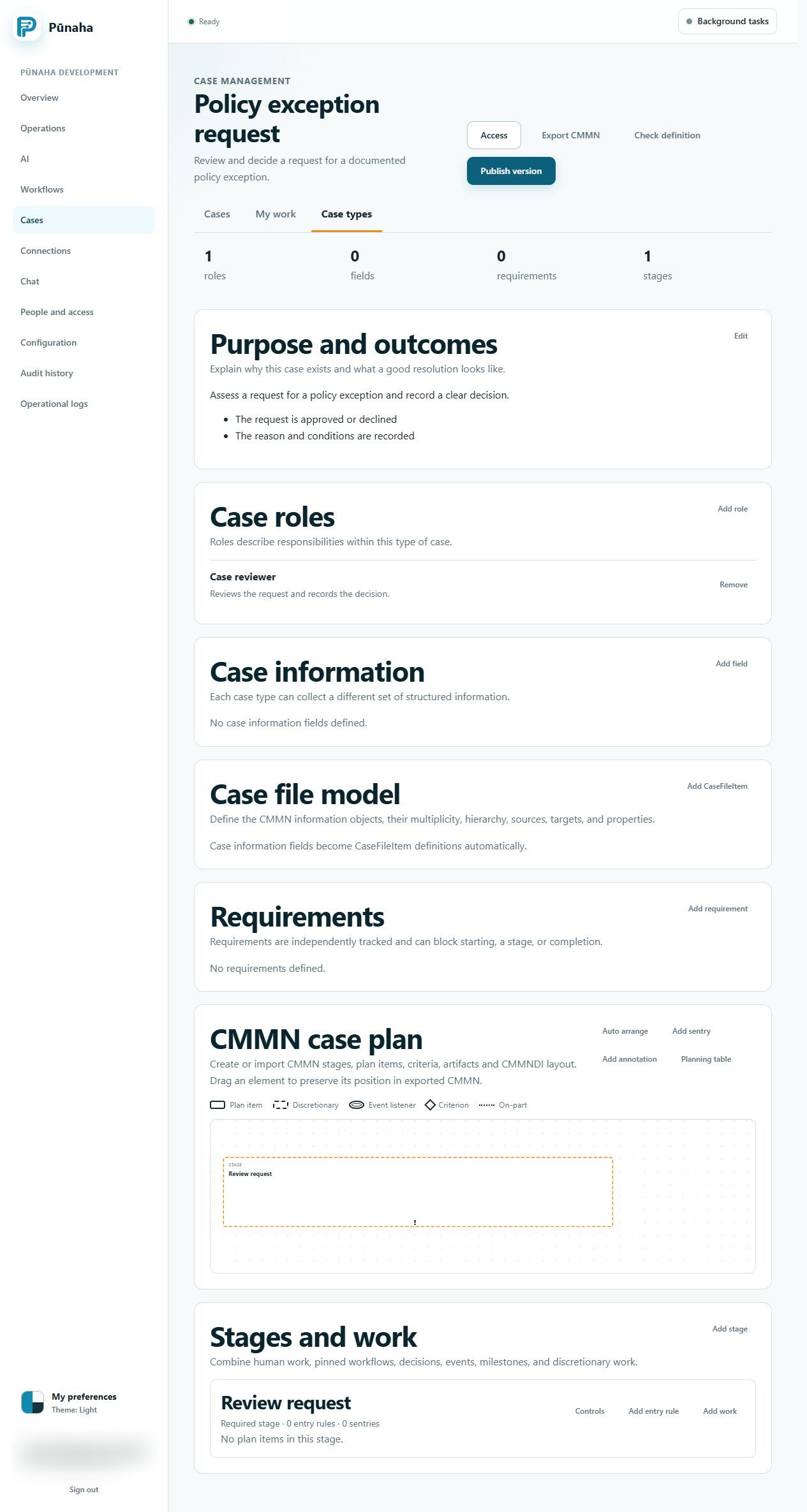
- Add the roles and information fields.
- Add the requirements.
- Add the stages and work items.
- Add rules only where they are needed.
- Save the draft.
Check and publish the case type
- Open the draft in the case type editor.
- Check each stage, task, requirement, and field.
- Run the built in check.
- Fix every issue.
- Test the normal path and a difficult case.
- Choose Publish.
- Publish the numbered version.
Open a case
- Return to Cases.
- Choose Open case.
- Choose the published case type.
- Enter the case title.
- Enter the information required at the start.
- Open the case.
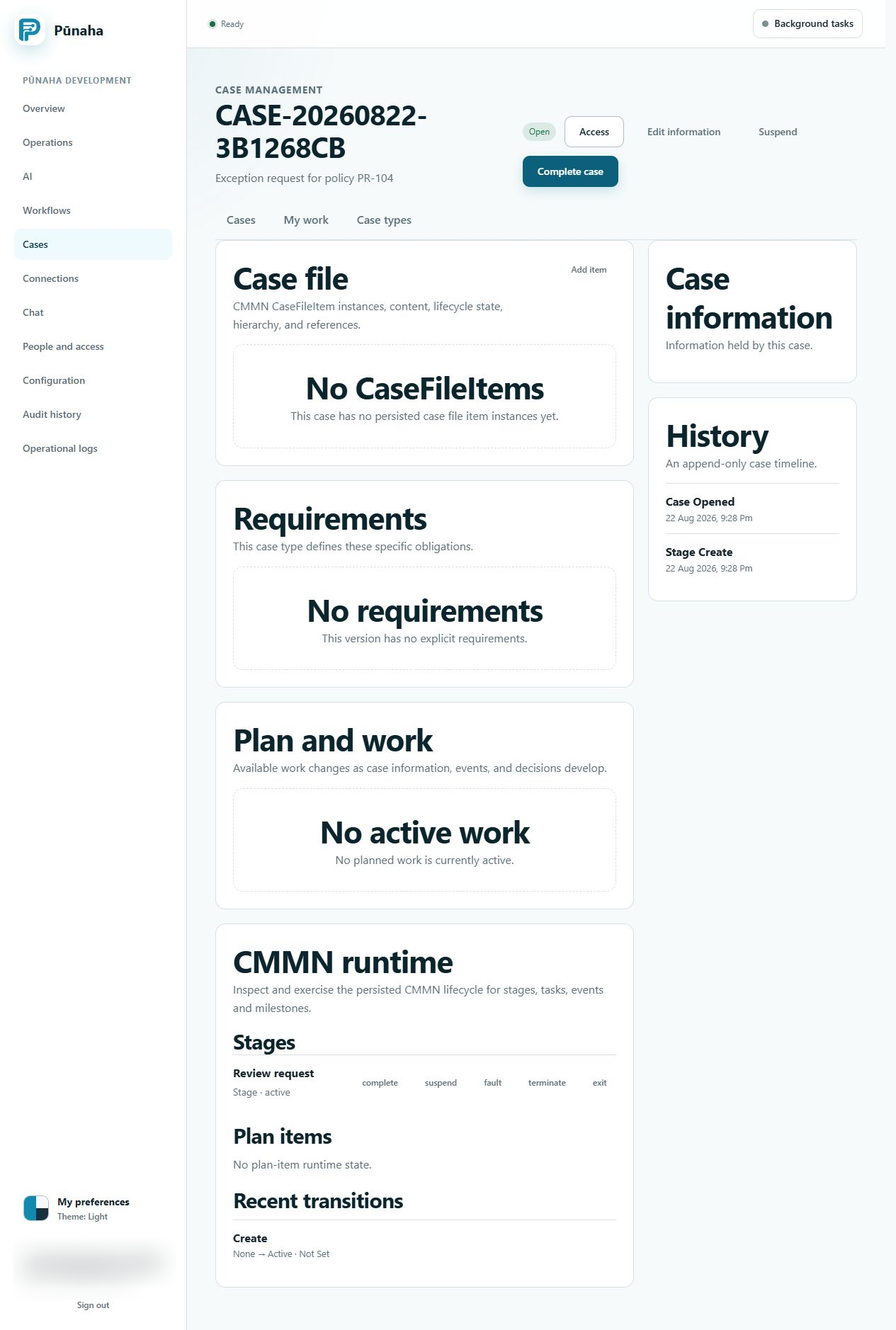
The new case should show its reference, case type version, current stage, requirements, and available work.
Complete case work
- Open My work or the case list.
- Open the case.
- Read the current stage and requirements.
- Start the correct work item when it needs a start action.
- Record the outcome and complete the work.
- Record evidence for a requirement when needed.
- Check the case history.
Check the result
The completed action should appear in the case history. The next available work should match the published case type and the information held by the case.
If it does not work
- If Open case is missing, check Create access for Cases.
- If no case type is available, publish a valid case type first.
- If work is missing, check the case worker's Work access and the case rules.
- If a requirement cannot be completed, check the required evidence and the person's access.
Next step
Read Build a case type for more design detail. Read Work with cases for daily case work.
Was this page helpful?
Your answer helps us improve the documentation.
Do not include personal information, customer information, passwords, or keys.