
Use Pūnaha
Create and search knowledge
Create a knowledge database, add files, and search their content.
Before you start
Choose the knowledge database that should hold the documents. Make sure you have access to create documents and search the database.
Use documents that your organisation has approved for this purpose.
Create a knowledge database
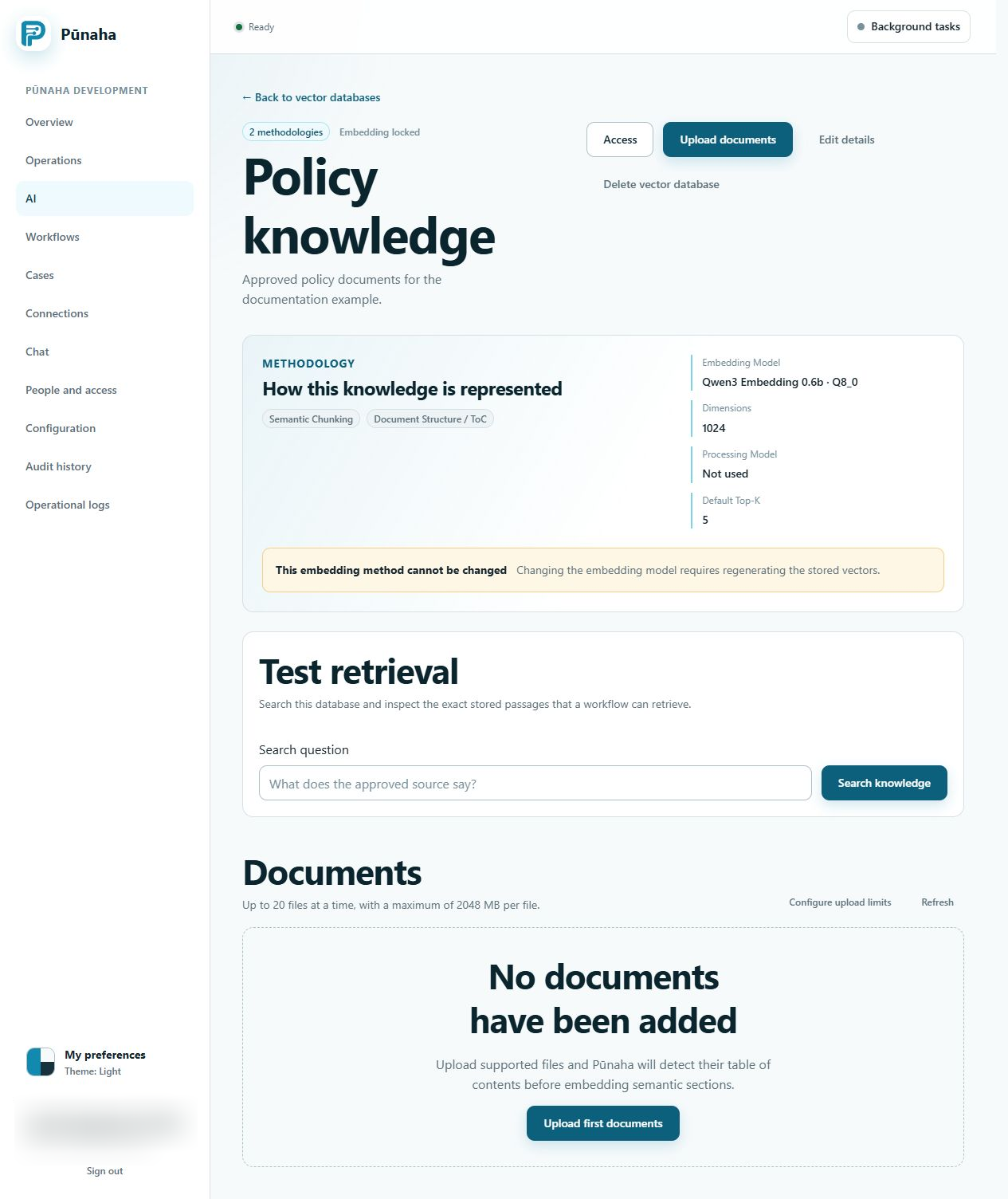
Open AI, then choose Knowledge. Create a database and choose an embedding model. You may also need to choose a search method.
You only see the choices that you have permission to use.
Add files
- Open the knowledge database.
- Choose up to 20 supported files.
- Start the upload.
- Wait while Pūnaha reads and indexes the files.
Pūnaha shows each step, such as waiting, reading, splitting text, creating embeddings, and finishing.
Check the upload result
Each file should show that processing finished. Open the document details and check the name, state, and recorded processing information.
If the same content is already present, read the result before uploading it again.
Leave the page if you need to
You can go to another page while the files are being processed. When you return, Pūnaha shows the saved progress.
Search the knowledge
- Open Test retrieval.
- Enter a question about a fact in the uploaded document.
- Choose Search knowledge.
- Read the returned stored passages.
- Compare each useful passage with the source document.
A useful result should contain the correct passage and a source reference. A match score alone does not prove that the answer is correct.
If a file does not finish
- Pūnaha may reject a file that is encrypted, damaged, empty, or not supported.
- A file that contains only images may have no readable text.
- If processing fails, record the file name, document ID, job ID, time, and message.
- Check Operations and logs before you upload the file again.
Delete with care
You need separate access to delete a file or the whole database.
Deleting a file also removes its text, vectors, and processing records. Deleting a knowledge database asks you to type a confirmation.
Next step
Use the database in a draft workflow. Read Build a workflow before you publish it.
Control processing
Open document details to distinguish preparation, capacity waiting, generation, and embedding. Read the original failure and actual processing node.
Use Stop, Assign, and Resume when needed. Wait for Paused before changing an active job destination.
Was this page helpful?
Your answer helps us improve the documentation.
Do not include personal information, customer information, passwords, or keys.