
Administer
Review access
Review direct access and record whether each item should stay, change, or be removed.
Your progress
Follow this journey
Progress is saved only in this browser.
Before you start
Confirm the tenant, people or groups, resource types, and review period. Name the person who will decide whether each item is still needed.
A review covers the assignments selected by its criteria. It does not prove that unrelated access is correct.
Create the review
- Open People and access.
- Choose Access reviews.
- Create a review.
- Choose clear criteria that match the approved scope.
- Check the number of matching direct assignments.
- Set the reviewer and due date.
- Start the review.
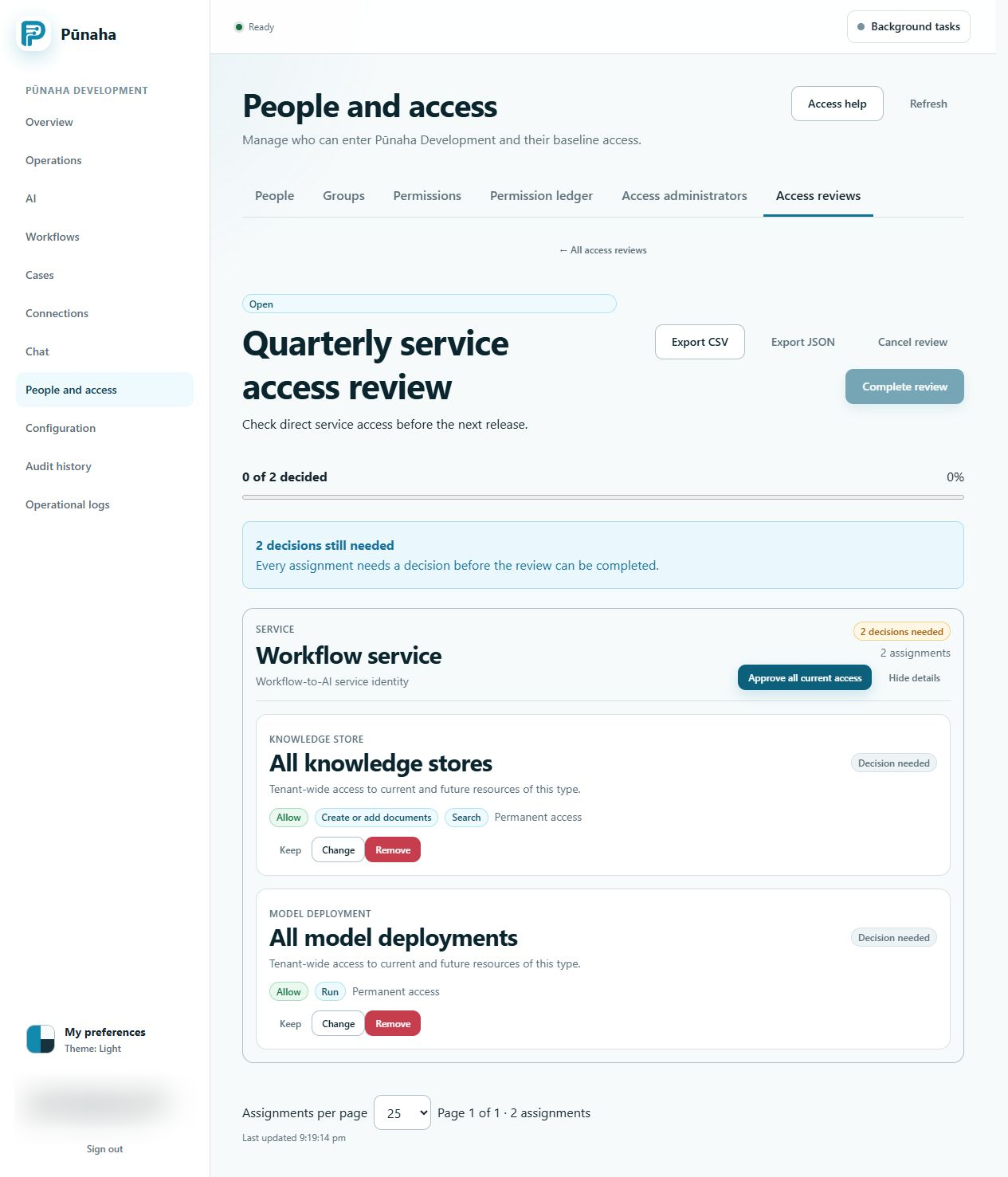
Decide each item
- Keep means the current assignment is still correct.
- Change means the person still needs access but the item, actions, or dates need correction.
- Remove means the assignment is no longer needed.
Read the resource, actions, effect, dates, and evidence before deciding.
Complete the review
- Resolve every pending item.
- Check changed actions and dates.
- Refresh if another reviewer changed the review.
- Complete the review.
- Confirm that the review reached its final state.
Completion is one operation. Pūnaha does not apply only part of a completed review.
Check the result
- Use Check access for an action that should remain allowed.
- Check an action that should now be unavailable.
- Check the permission ledger and audit record.
- Keep the approved review evidence under your organisation's rules.
If the review cannot finish
Look for a pending item, a change made by another reviewer, an invalid proposed action, or missing review management access. Read Fix sign in, invitation, and access problems.
Next step
Set the next review date according to your organisation's policy. Do not assume that completing one review makes all future access correct.
Was this page helpful?
Your answer helps us improve the documentation.
Do not include personal information, customer information, passwords, or keys.