
Reference
Fix sign in, invitation, and access problems
Understand a failed sign in, unavailable invitation, missing area, or forbidden action.
Start with what you see
Choose the closest problem
Select one symptom. You will still check the evidence before changing anything.
What you see
- Pūnaha asks you to sign in again.
- An invitation says it is used, revoked, expired, invalid, or for another account.
- A menu or button is missing.
- The page says This area is not assigned to you or returns Forbidden.
What it means
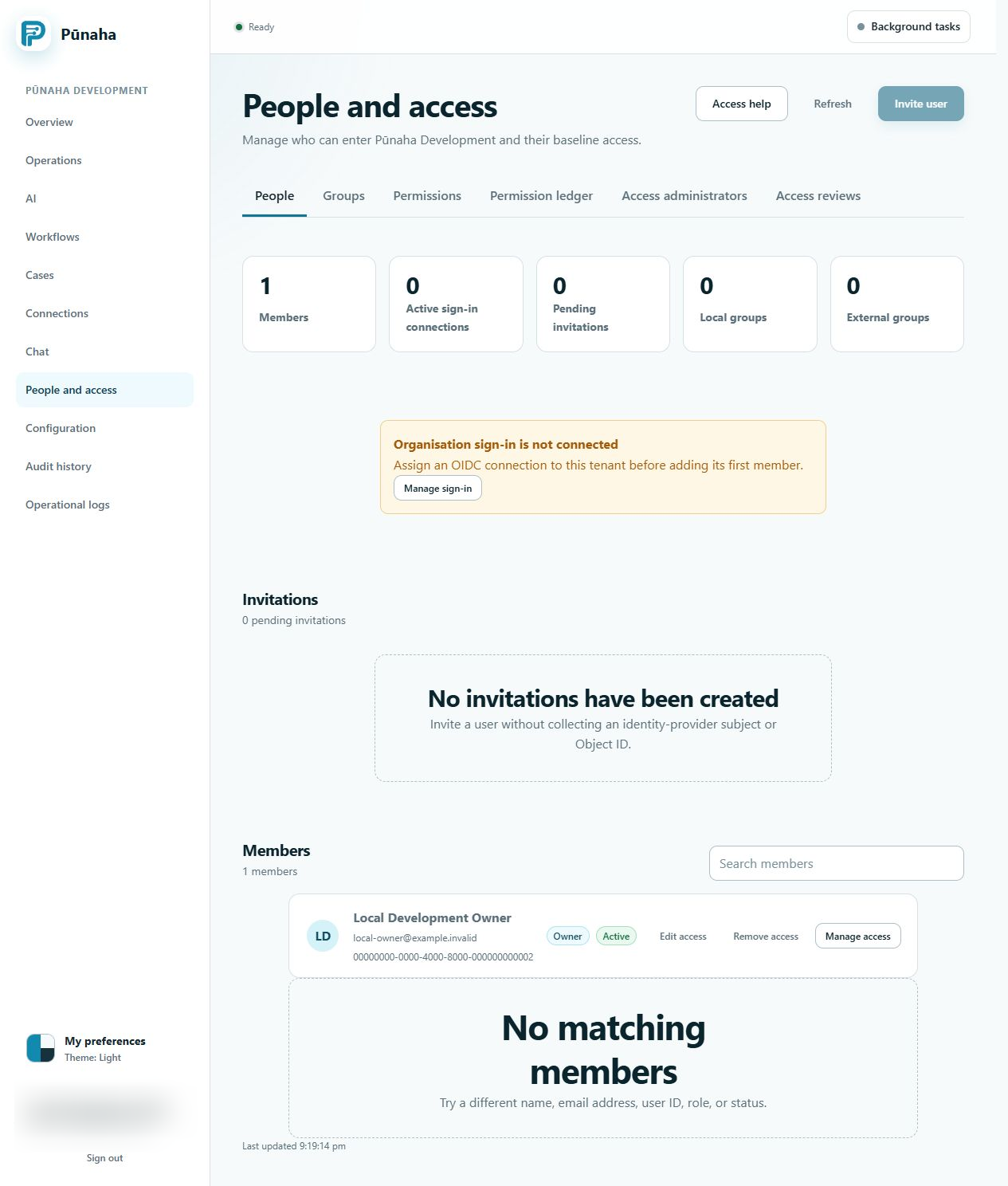
A sign in session may have ended. An invitation has one named account, sign in method, state, and expiry time.
A missing area or Forbidden result means the current person does not have the exact action. If no access is intended, this is the correct restricted state.
Likely causes
- The session expired.
- The invitation was already accepted, revoked, or reached its expiry time.
- The person used a different email account or identity provider.
- The person has View but not Search, Run, Create, Update, Work, Publish, or Delete.
- An assignment has not started, has expired, or is blocked by a matching Deny.
- A local or external group is inactive or does not include the person.
Safe checks
- Read the exact message and record the time.
- For sign in, open the normal Pūnaha address and try once more.
- For an invitation, ask an administrator to check its state, email address, sign in Connection, and expiry time.
- For access, select the person in Permissions.
- Use Check access for one named item and the exact failed action.
- Read every direct, role, and group source, including any Deny.
Solutions
- Sign in again when the session expired.
- Use the account named in a valid invitation.
- Send a new invitation only after the old invitation state or account mismatch is confirmed.
- Add only the missing action when the person should have it.
- Correct an inactive group, date, or assignment only when it is wrong.
- Make no change when the restricted state is intended.
A saved page address never bypasses access.
What to collect
Collect the tenant name, person, invitation state, item type, named item, action, time, Check access explanation, and request ID.
Do not collect a password, sign in code, token, identity provider secret, or customer document.
Related guides
Read Invite a person and give access and Fix an access problem.
Organisation sign in or registration restriction
Check public origins and OIDC callbacks when sign in returns to the wrong address.
A registration restriction is different from a missing tenant permission. Read registration recovery when only that area remains available.
Was this page helpful?
Your answer helps us improve the documentation.
Do not include personal information, customer information, passwords, or keys.